Screenshots
The following screenshots show Statbocks in action. Different screens will give you an idea of the information available.
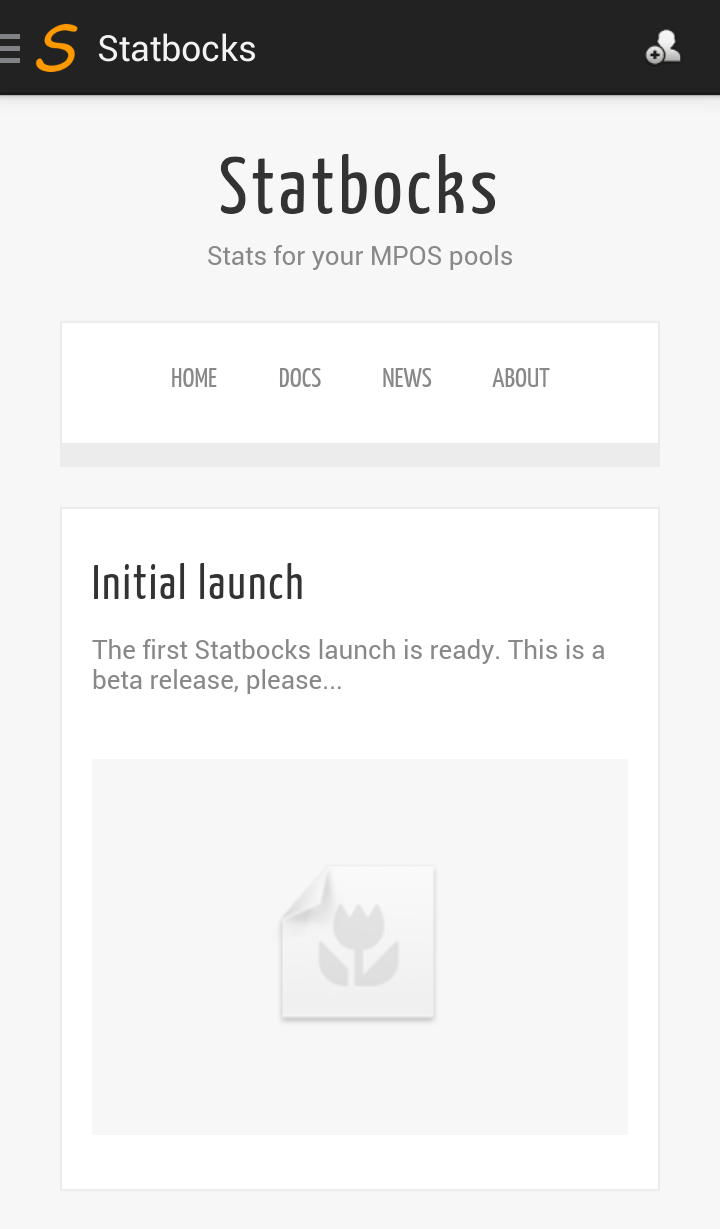
Main Screen
The main screen starts off showing the Statbocks website with latest news items.
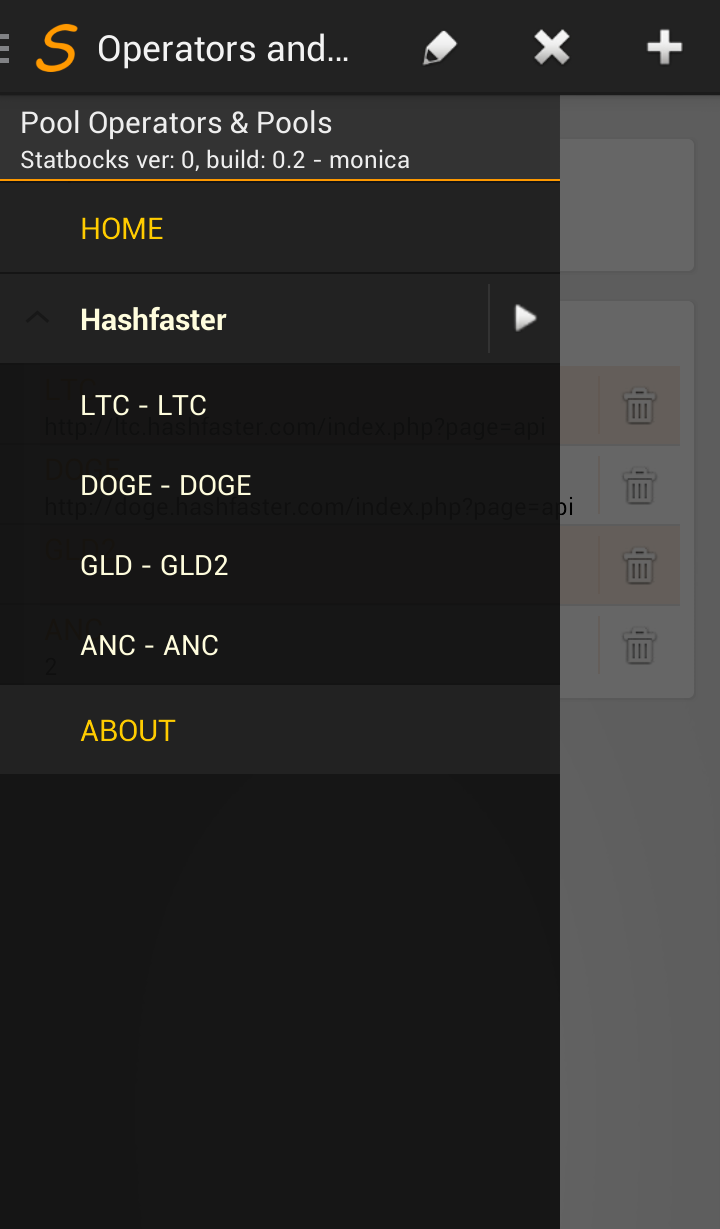
Navigation Drawer
The Nav drawer shows you all the pool operators and all the pools configured for each operator.
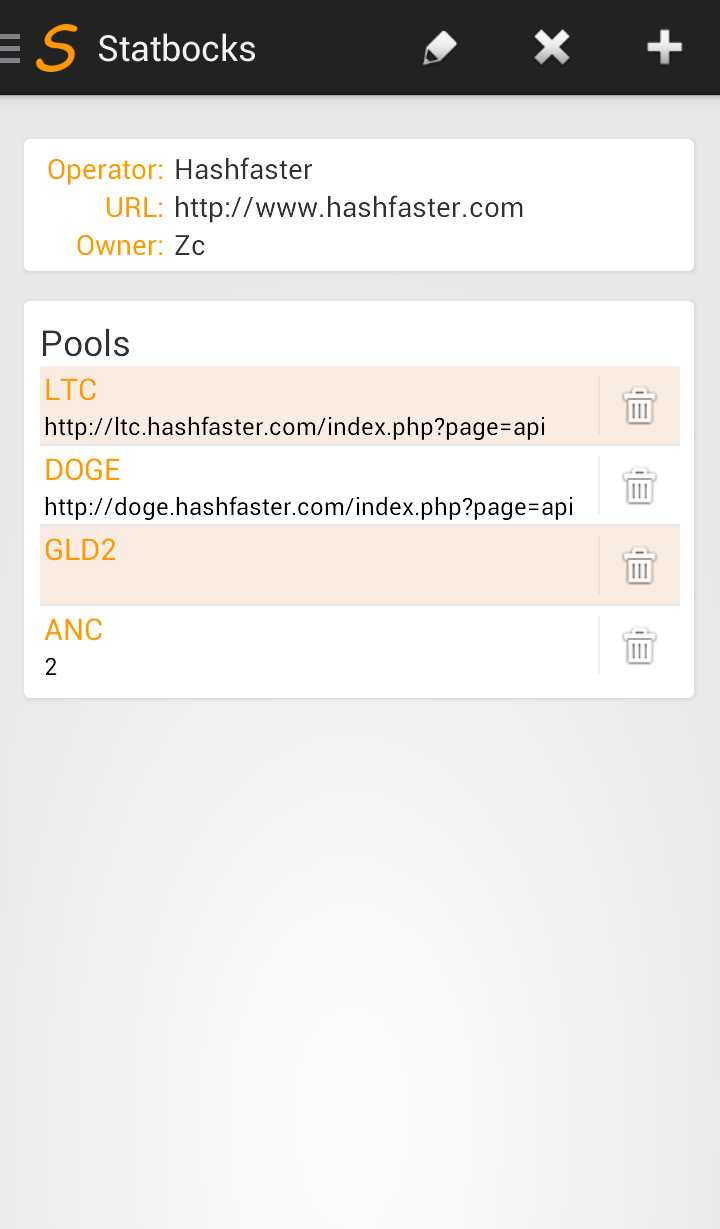
Operator View
In the nav drawer above, the light gray item with an arrow pointing to the right is the operator. Tapping an operator expands/collapses the list item. Tapping on the arrow opens the operator view. From this view you an tap on pool items to edit them or tap on the trash image to delete a pool.
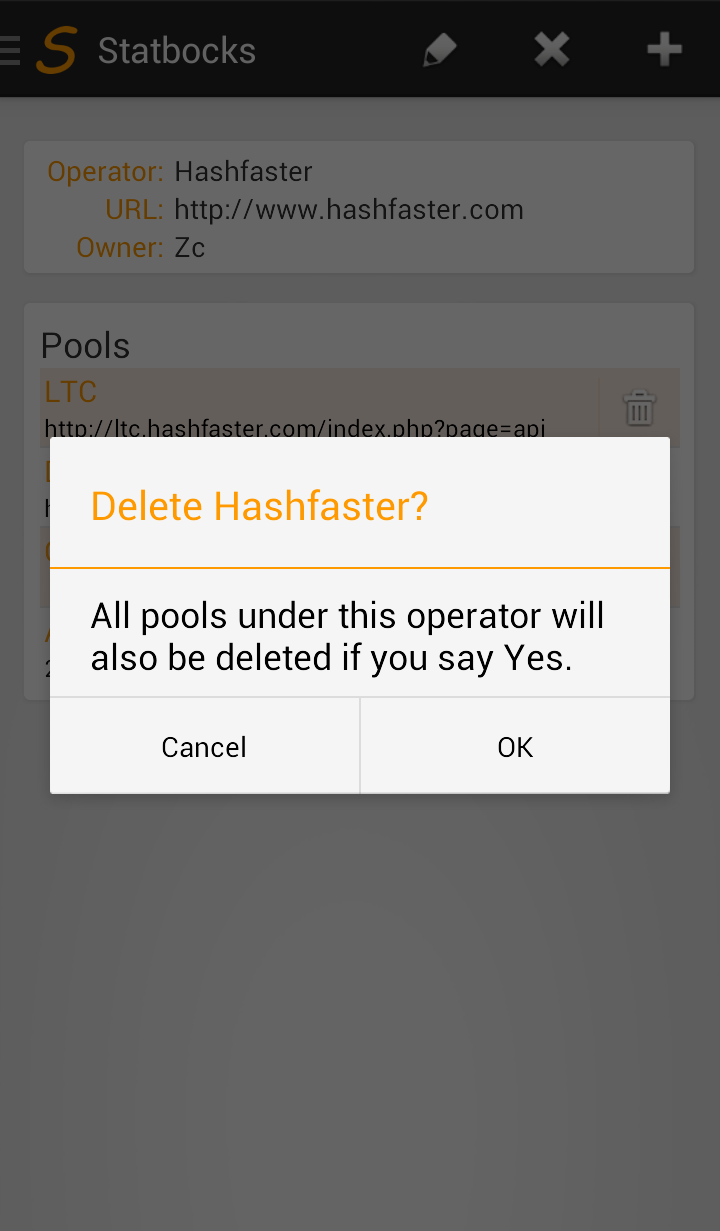
Delete Operator
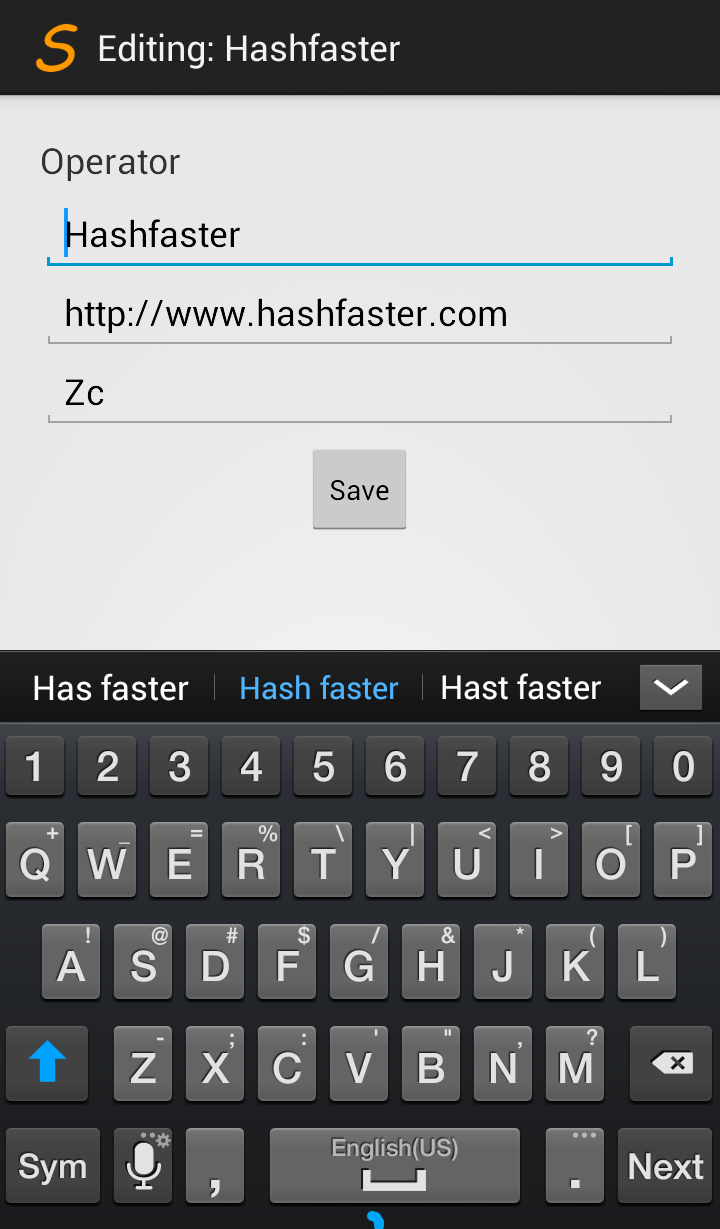
Add Operator
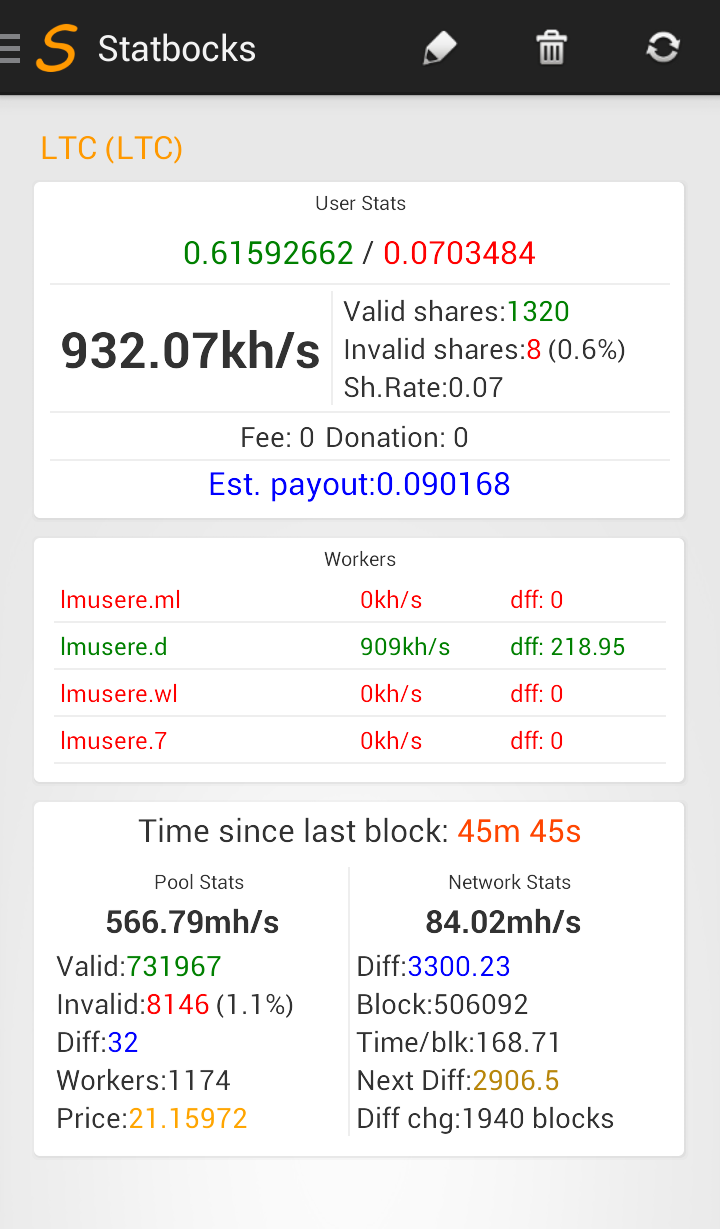
Pool View
This view shows you all the important stats in one page. Each item is color coded so you can easily pick things off the screen. Things you care about are in bigger fonts, so you’re not squinting at your phone in public looking like a complete idiot. You workers are color coded to show status so you only have to squint to read the name of a worker that is down (hopefully nobody watches you squinting).
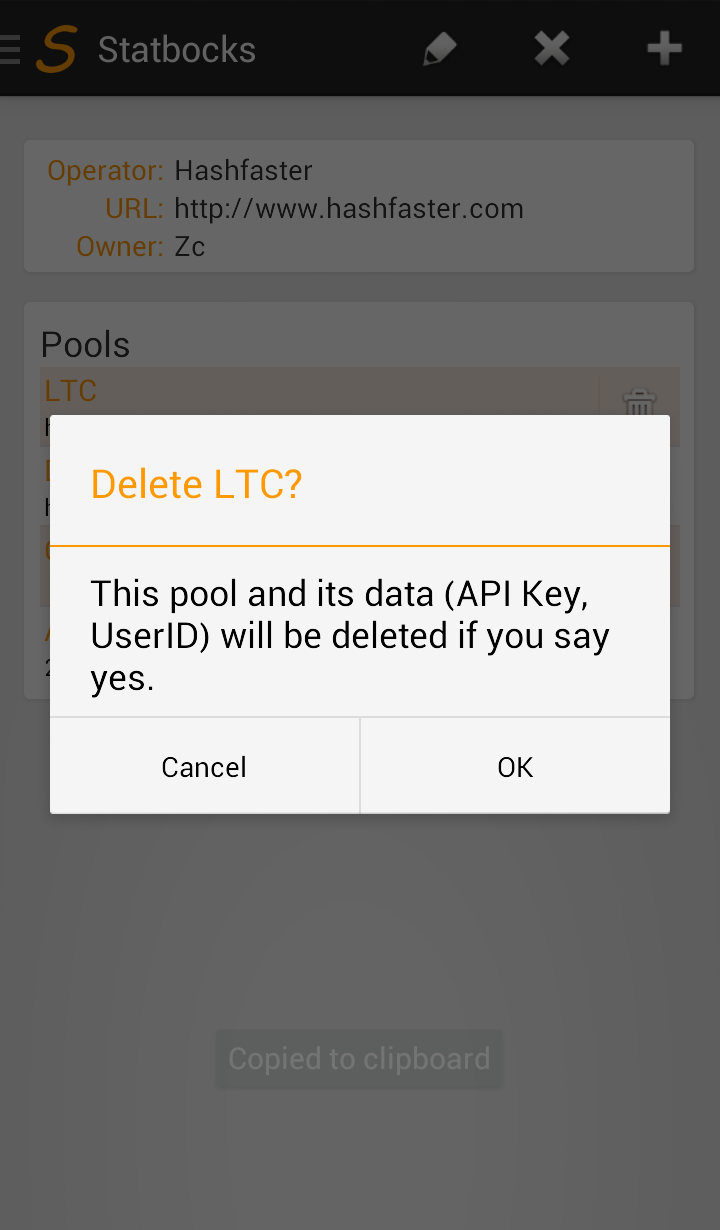
Delete Pool
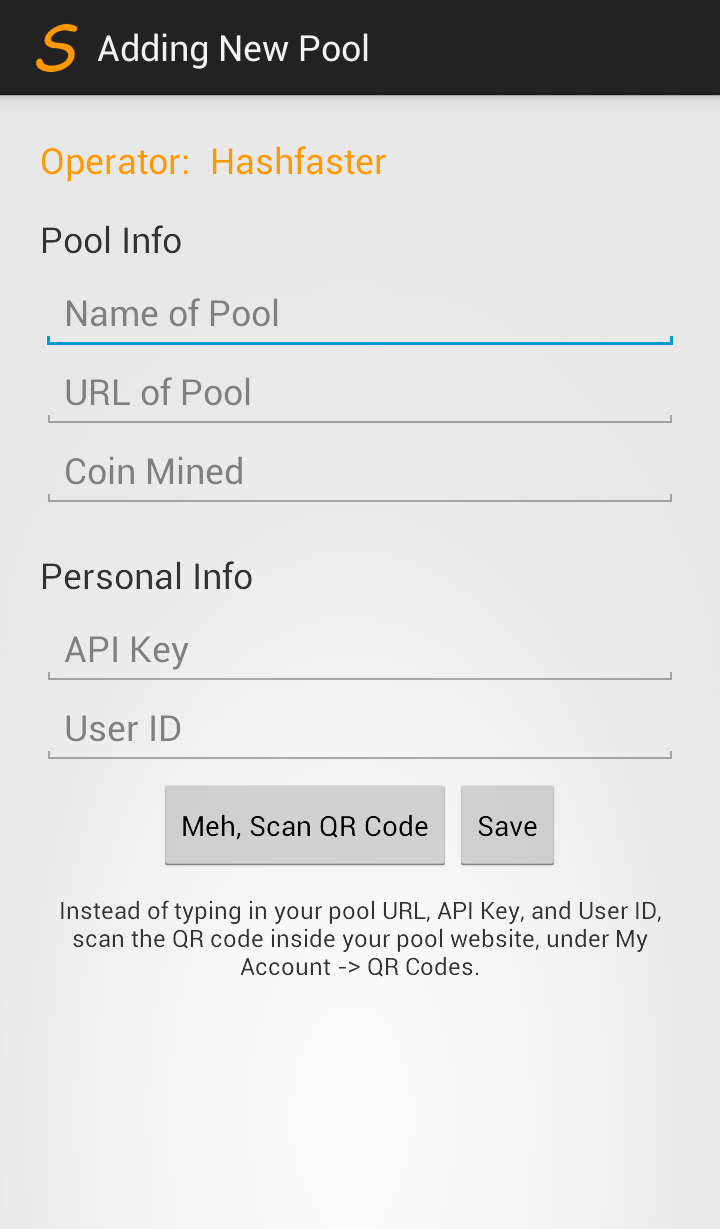
Add New Pool